
Get Windows 11
- Aaryan Totala

- Jul 25, 2021
- 3 min read
Updated: Sep 14, 2021

Back in 2015, it was stated that Windows 10 would be the final version of windows. However, Microsoft rejuvenated the visuals of Windows through Windows 11. A couple of weeks ago, Microsoft released an 11-minute clip of Windows startup sounds. They also revealed that it’ll be free to update for people using genuine Windows 10, 8 and 8.1. A first major release in nearly six years, the new OS had some exciting new features. Microsoft Teams will be a default app available on the taskbar. Startup button doesn’t have tiles any more, and has pinned apps instead. The Task view feature is refreshed completely and it provides separate wallpapers for virtual desktops. Android apps can run on windows 11 too, such is it’s quality !
These exciting new features made plenty of users impatient as they wanted to upgrade to Windows 11. Microsoft allowed users to get the preview build through the Windows Insider Program, and run it smoothly on their devices. Follow the steps to get Windows 11 Preview Build. Before getting Windows 11, I would ask you to spare a maximum of 3 hours in downloading this operating system, so don’t blame me if it takes a lot of time.

Download the PC Health Check App, and run the .exe file. If the PC is compatible, then follow the next steps, and if it isn’t, then check the steps to install on non-supported devices.
Sign up for the Windows Insider Program in Settings < Update and Security < Windows Insider Program. Click on register and sign up with your Microsoft Account. Agree to all terms and agreements, and then select the dev channel and hit confirm. Agree to Microsoft’s terms, and you’re good to go.
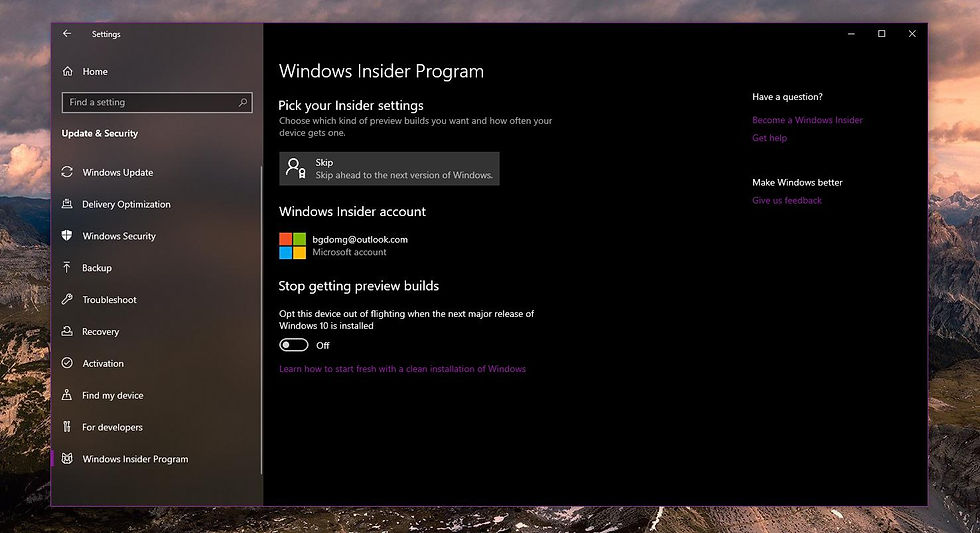
Click on restart now to restart the computer and get the preview build. You will see a check for updates option, in Settings < Update and Security < and click on check for updates. PC will start downloading the preview build, and it’ll take upto 3 hours depending on your PC speed and specifications.
We have seen how to install this operating system on a supported device, but there are many out there who have computers they bought before 2018, and thus aren’t compatible enough to install Windows 11, like unsupported processors or no secure boot. I was personally interested in exploring windows 11, so after some research, I found out how to install it on unsupported devices.
Before installing Windows 11, I would advise everyone to back up all files and apps, in a flash drive or online cloud storage, for safety purposes. Though it’s highly unlikely to lose data (I didn’t), we should take precautions.
Manually install Windows 11 on an unsupported device:
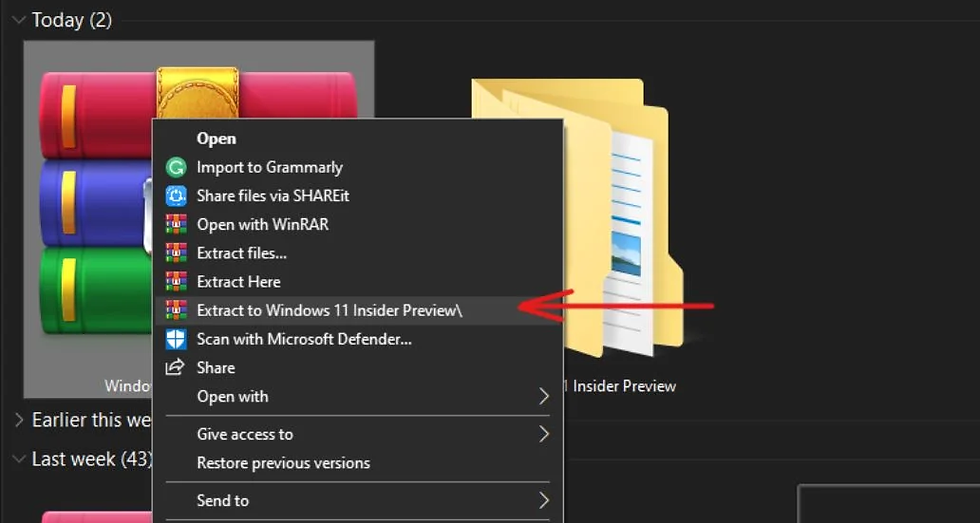
Download Windows Insider Preview build from the google drive link given below. (Backup all your files during this process)
After downloading the file, extract it. (If you don’t see the extract option, download WINRAR, or 7ZIP on your computer.

After extracting it, open the folder and run setup.exe.
Agree to all terms and conditions after the setup opens. Accept the license terms, it’ll take some time to get to the next step.
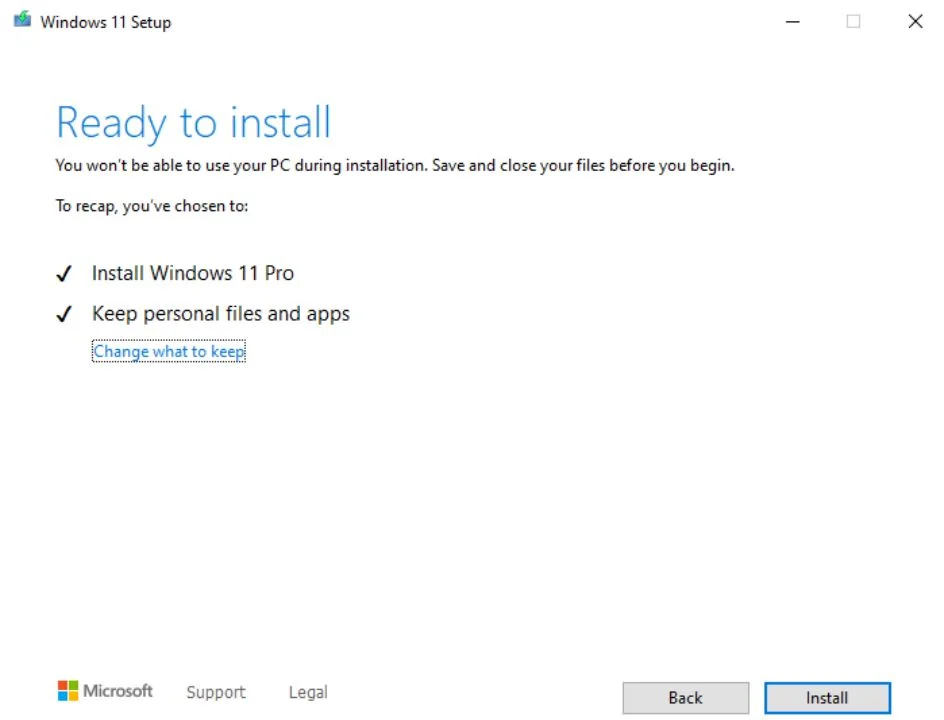
Click on the install option once ready.
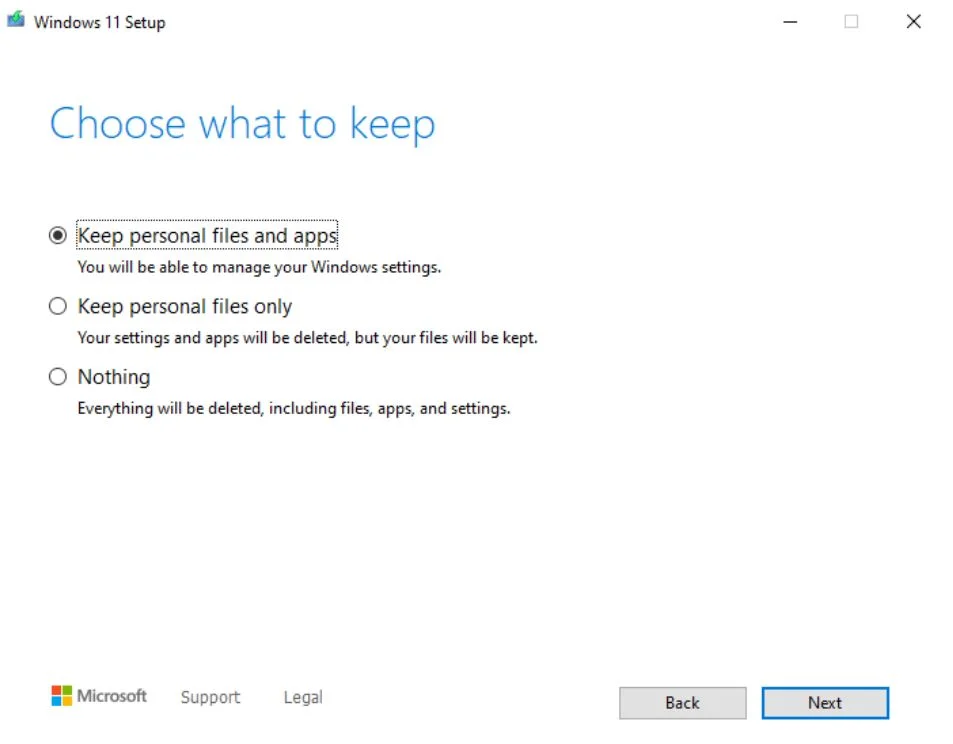
The computer will restart quite a few times, and will be stuck at some phases too. You should be patient in order to get Windows 11, and it’ll take a minimum of 1.5 hours, or could go to 3 hours or more, depending on your computer’s specifications and speed.
Switch back to Windows 10:
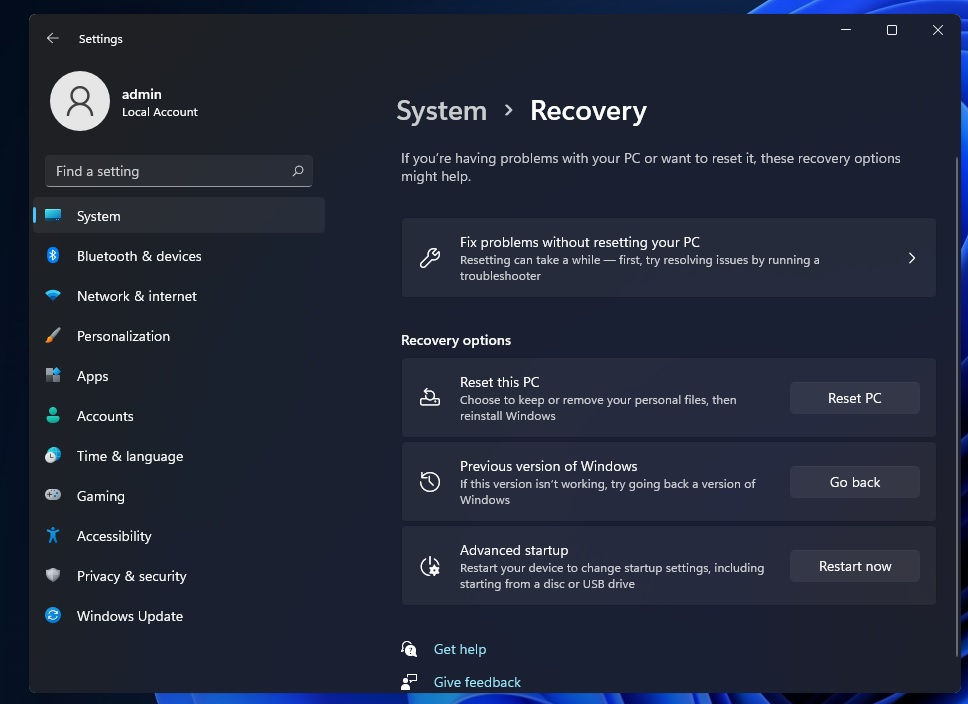
Go to settings < Update and security < Recovery
There will be an option to go back to the old version, and click on it.
However, on computers having Windows 11 for over 10 days then you will see that the option is no longer available. Only a complete clean up of the PC will get you that option, so be careful.
Affiliated links
All these preview builds are completely authentic, and not cracked versions. The much hyped dream of getting Windows 11 finally comes true. I strictly tell you that it’ll probably be glitchy for people with older and slow PCs, and you can always solve the problem by switching back to Windows 10, through the above steps. I’ll be posting new articles in case of updates related to Windows 11. Enjoy all the features, and do comment, like if this helped you in getting Windows 11. Hope this allows you to safely get Windows 11. Until next time, stay safe, healthy, wear a mask and sanitize yourself.
Adios.



too bad for me I like Mac OS system
I have This Already, But I read this Because I Find These Interesting. 😉
Is it really safe ??
yo this is coool